
Contractor AcademyLesson 2 of 6
Creating a concept in Renderspace
Studio · 2 min read
Upload the job-site photo, set the Landscape controls that match the work, and name finishes the dropdown does not list.
1. Open Landscape and upload the photo
Go to Landscape Studio. Under Reference Image, click to upload the job-site photo. JPG, PNG, and WEBP under 10MB are the accepted files.
2. Set the controls that exist on the form
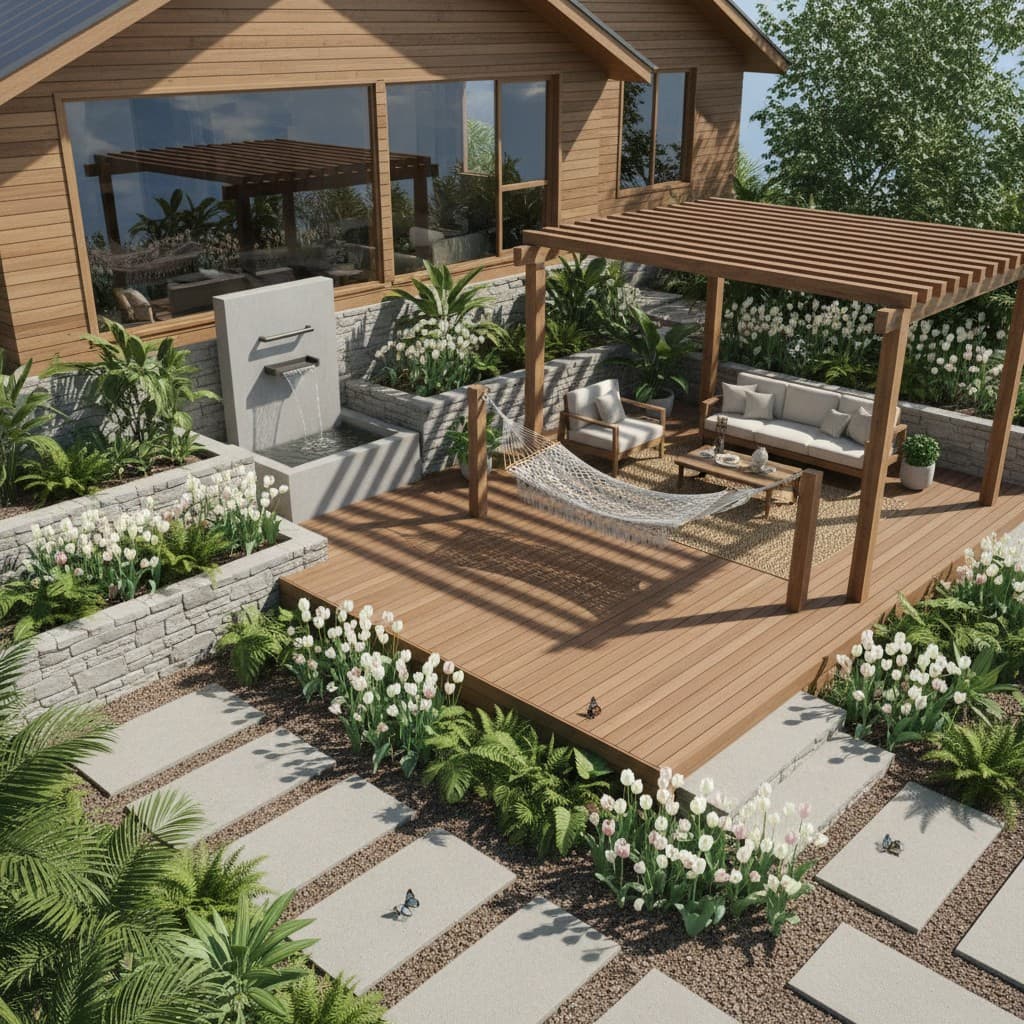
Project Basics sets garden type. Hardscape & Water sets Hardscaping to gravel, pavers, concrete, stone, or wood deck, and Water Feature to fountain, pond, stream, waterfall, pool, or none. Open Advanced, then Furniture & Structures, to set Structures to pergola, gazebo, arbor, or trellis. Materials sets Wall Materials to stone, brick, wood, concrete, or none.
3. Name a finish that is not in the list
Hardscaping and Wall Materials can take a typed value. Open the field, type the finish, and press Enter. Limestone, slate, travertine, and cedar are entered this way. Marble is a Flooring option in Interior Studio, not a Landscape wall material. Exterior Studio has its own Exterior materials list: brick, concrete, wood, stone, metal, glass, and stucco.
4. Use Design notes when you start from a preset
Design notes appear when a gallery preset is loaded. The field holds 240 characters and is sent with the concept. The Cedar pergola preset already names cedar, a wood deck, and an outdoor kitchen. Edit that note instead of adding a second brief somewhere else.
5. Generate one direction, then read it against the photo
Generate the concept and compare it with the reference. If the house, grade, or access changed in a way the job cannot build, adjust the control or the note and generate again. Do not present the first image as a scope of work.